
9.1 The numbers you see every day
You don’t need the Statistics screen to know how you are doing. Three numbers appear throughout the app, and all of them are free.
| Number | Where you see it | What it means |
|---|---|---|
| Due | Today, deck rows, the card list | Cards whose next review date has arrived |
| Mastery | Interest and deck rows | The share of cards whose latest grade was Good or Easy |
| Streak | Today, as “N days in a row” | Days in a row with at least one review |
9.1.1 Due
A card is due when its scheduled review date has passed. Today adds up the due cards across all your interests, together with any new cards the day allows, and gives you an estimate such as “About 6 min”. When nothing is due, Today says All caught up and shows a small Next 7 days strip, so you can see tomorrow’s workload coming. How due dates are chosen is the subject of Chapter 6.
9.1.2 Mastery
A deck’s mastery counts every card whose most recent grade was Good or Easy and divides by the number of cards in the deck. Cards you have never reviewed count too, as not yet mastered, so a freshly imported deck starts at 0 %. An interest’s mastery is the average of its decks’ mastery, with every deck weighing the same whatever its size.
Because only the latest grade counts, mastery is a snapshot, not a trophy. Press Again on a card you knew last week and that card stops counting until you get it right again. That is the point: the number tells you what you know today.
9.1.3 Streak
Your streak counts the days on which you reviewed at least one card. One card is enough. You also get a grace day: if you haven’t reviewed yet today, yesterday’s streak still stands until the day is over.
JustFlip! is kind about the odd missed day. Up to two missed days inside your current streak are bridged automatically, so a single busy day doesn’t wipe out a month-long habit. The bridged days themselves don’t add to the count. If you would like a nudge before a streak lapses, turn on Streak rescue under Settings › Reminders. It sends one evening reminder when you haven’t reviewed yet that day.
9.2 Opening Statistics (Pro)
The full Statistics screen is a Pro feature. Open it from the Settings menu (the gear icon) at the top of the Interests list, then choose Statistics. Without Pro, the menu item wears a lock and opens the Pro screen instead. A Pro free trial unlocks it too.
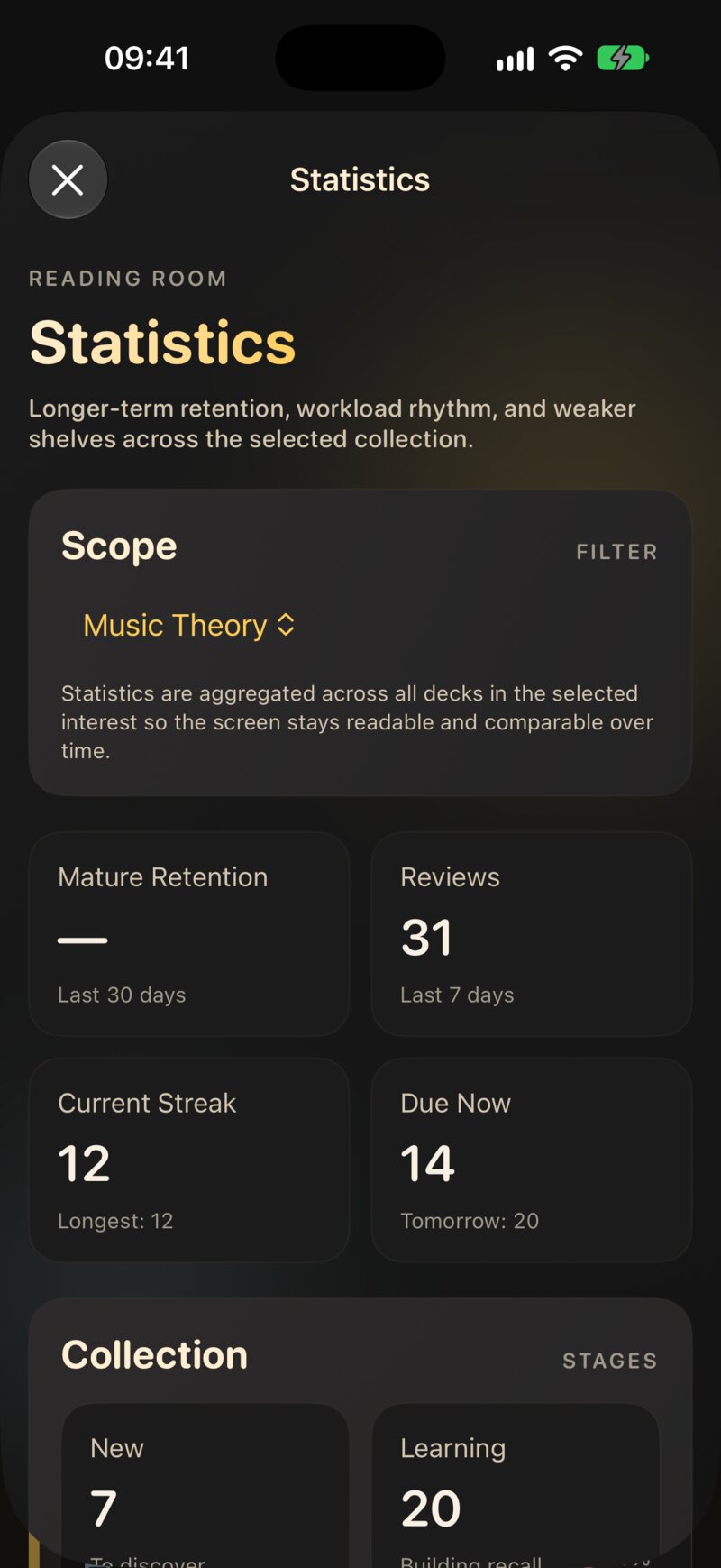
Statistics always looks at one interest at a time. Pick it under Scope at the top. Everything below it, from the summary tiles to the forecast, adds up all the decks in that interest. That keeps the numbers comparable over time. To compare two subjects, switch the picker back and forth.
The screen refreshes on its own after you review, so you can keep it open on an iPad or Mac next to a study session.
9.2.1 The summary tiles
| Tile | What it shows |
|---|---|
| Mature Retention | How often you remembered mature cards over the Last 30 days (see Retention) |
| Reviews | How many reviews you did in the Last 7 days, today included |
| Current Streak | Your streak in this interest, plus your longest ever |
| Due Now | Cards due right now, plus how many fall due tomorrow |
The streak here is worked out the same way as on Today, but only from reviews in the selected interest. It can be shorter than your Today streak, which counts every interest.
9.2.2 Collection stages
Under Collection, every card in the interest is sorted into one of four stages:
| Stage | Caption | Meaning |
|---|---|---|
| New | To discover | Never reviewed |
| Learning | Building recall | Being learned, or relearned after a lapse |
| Reviewing | Reinforcing | In the regular review cycle |
| Graduated | Mastered | Intervals of 30 days and more |
A healthy collection drifts to the right over the weeks. Chapter 6 explains how a card moves between stages.
Due Now counts every card in the interest whose review date has passed, including cards you have postponed. Today only offers what fits into a session: postponed cards stay out, and Cards per session and New cards per day cap the rest. A big Due Now next to a short Today session is normal, not a bug.
9.3 Retention: overall and mature
Retention answers one question: when a card came up, did you remember it? A review counts as remembered when you graded it Good or Easy. Again and Hard both count as not remembered.
The Mature Retention chart plots that rate per day. Choose the window with the segmented control: 7D, 30D, 90D or All.
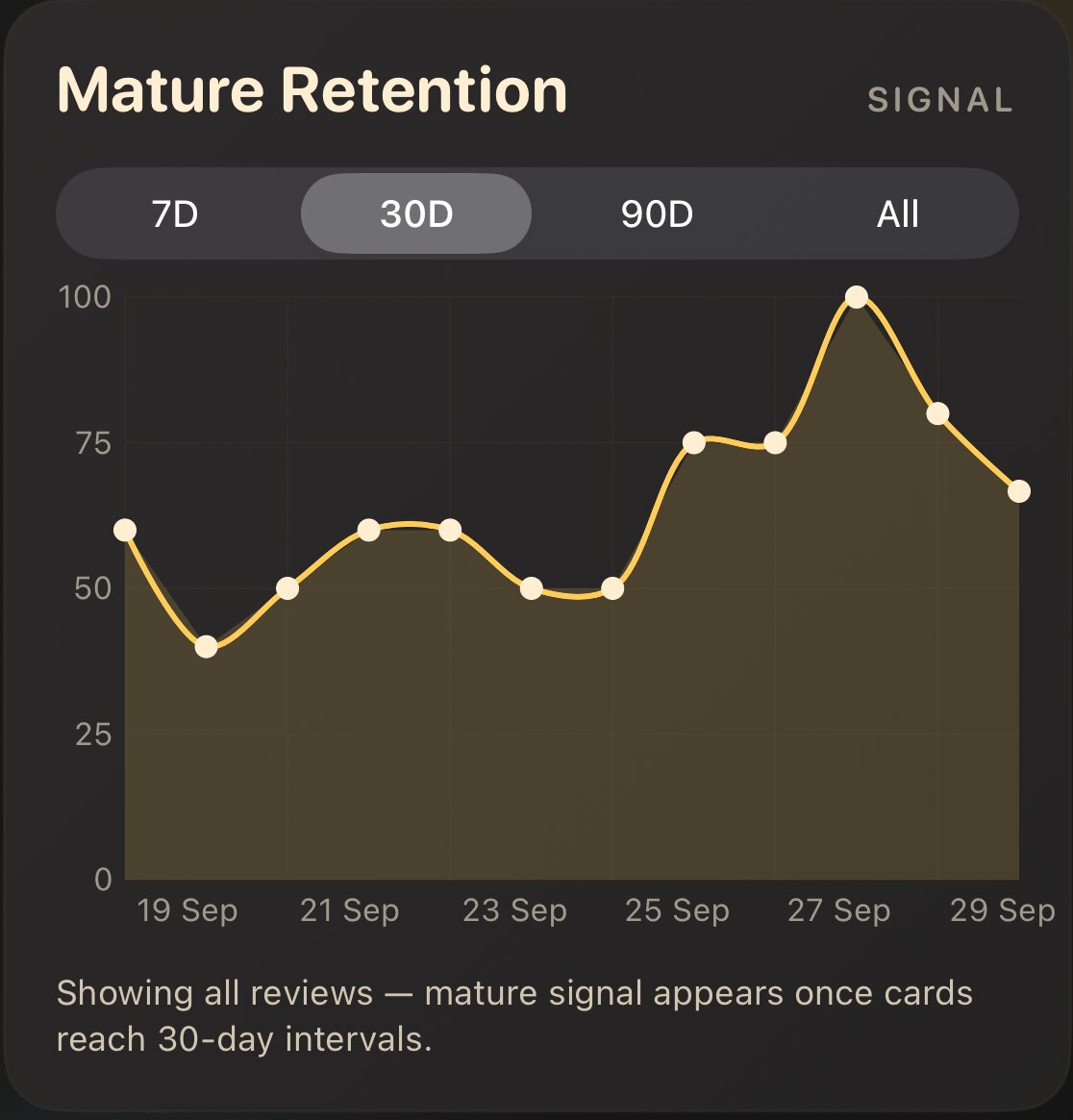
Mature is the important word. A review counts as mature when the card had already reached an interval of at least 30 days before you answered it. New cards are easy to “remember”: you saw them a minute ago. A card you last saw a month ago is the real test of long-term memory, and that is what the mature line shows.
In the first weeks you won’t have mature reviews yet. The chart then falls back to overall retention, every review of every card, and the caption under it says so: “Showing all reviews — mature signal appears once cards reach 30-day intervals.” Once your first cards cross the 30-day line, the chart switches to the mature signal by itself. If there are no reviews at all in the window, you will see Not enough mature reviews yet.
A single day can swing from 60 % to 100 % on three reviews. Choose 30D or 90D and look at the shape of the line. A flat line in the 80s and 90s means your schedule is doing its job.
9.4 Consistency: streaks and the heatmap
The Consistency section shows your Current and Longest streak for the interest, above a heatmap of the last 12 weeks. Every square is one day, and a darker square means more reviews that day, measured against your busiest day in the window. Today’s square has a small dot.
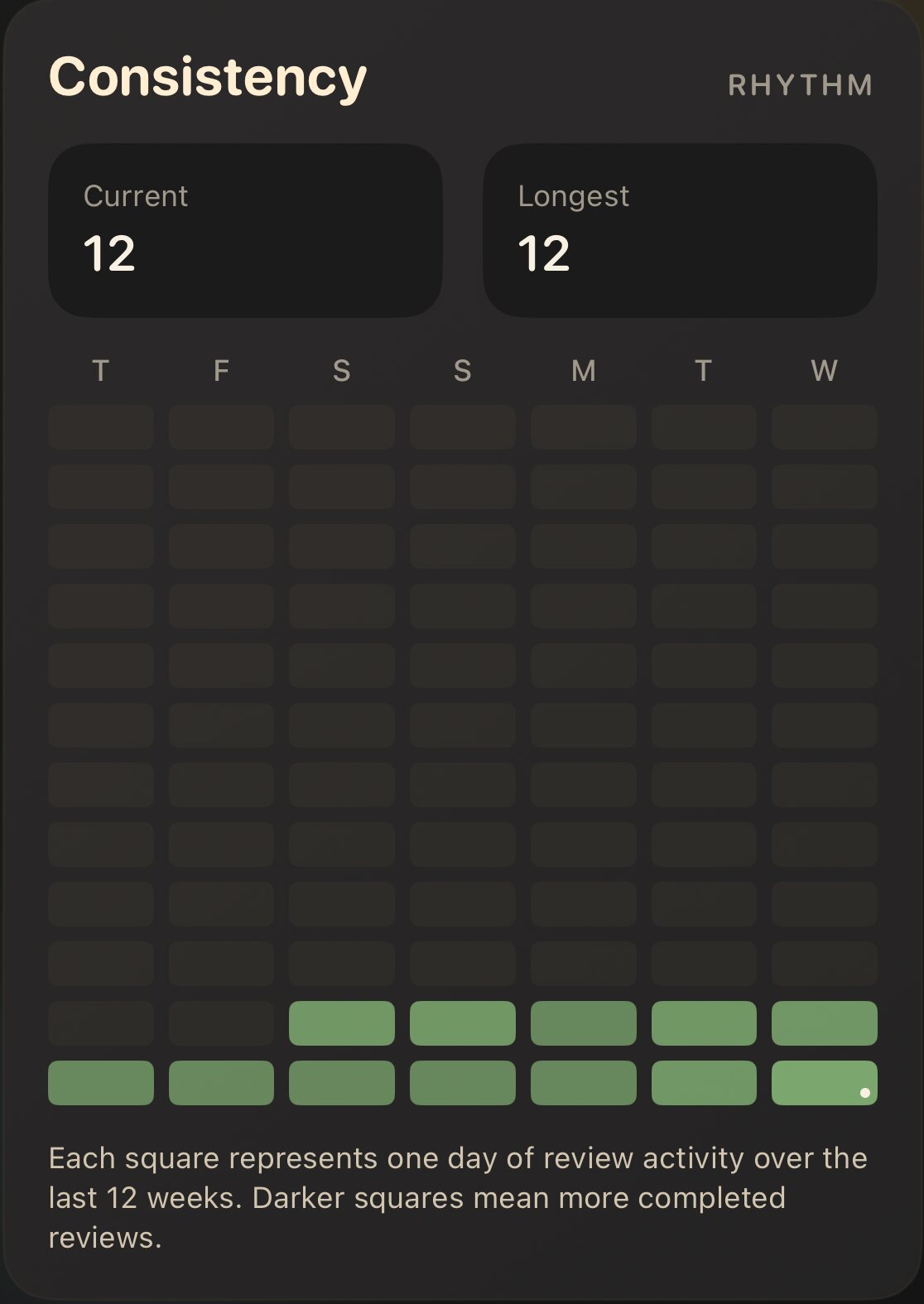
Look for gaps and clumps, not for colour. Ten minutes every day beats an hour every Sunday, because spaced repetition depends on seeing cards close to their due date.
Longest is the best run of consecutive days you have ever had, without the two bridged days that protect Current. So a current streak that has survived a missed day can be longer than your “longest”. Both numbers are right; they just measure slightly different things.
9.5 Deck Comparison
Deck Comparison ranks the decks in the interest by retention, with the lowest at the top. This bar counts every review you have ever done in the deck, not just the last 30 days, so it changes slowly. Under the chart, the first four decks list how many cards are due now and the total number of lapses, the times a card you knew was forgotten again.
The deck at the top is where your effort goes furthest. It usually means one of three things:
- The cards are unclear. Two possible answers, or too much on one card. Chapter 3 has the fixes.
- The material builds on something you haven’t learned. This is exactly what Ask AI is for.
- You are rushing it. You added more new cards than you can absorb. Lower New cards per day for a while.
9.6 Upcoming Review Forecast
The forecast is a bar chart of how many cards fall due on each of the next 7D or 30D, based on the schedule as it stands now. Cards that are already overdue are added to today’s bar, so a backlog never disappears from view. Retired cards are left out.
A spike two weeks out is normal after a big import or a busy week of new cards. If you see one coming, spread it: review a little extra over the days before it.
Every grade you give moves a card’s due date, so the forecast is a projection, not a promise. Cards you get wrong come back sooner and make tomorrow busier than the chart said.
9.7 Reading the numbers honestly
It is easy to feel productive and learn little. The Statistics screen is built to answer a harder question: am I learning better, or just reviewing more? A few rules of thumb:
- Reviews up, mature retention down. You are adding faster than you can consolidate. Slow down on new cards; the backlog will thank you.
- Mature retention steady, reviews steady. This is the goal. The schedule is doing its job; keep going.
- High overall retention, but no mature signal yet. Nothing is wrong. Your cards simply haven’t reached 30-day intervals. Give it a month.
- One deck far below the others. That deck has a card problem or a prerequisite problem, not a willpower problem. See Deck Comparison.
- A long streak with thin squares. One card a day keeps the streak alive, but not the schedule. Watch Due Now too.
Every figure in this chapter is built from your grades. Press Good on a card you half-remembered and you inflate mastery, retention and the intervals together, and the card comes back later than it should. Hard is not a failure; it is information.
9.8 Ask AI: brief your own tutor
After a few weeks, JustFlip! knows something no chat AI does: which of your cards you have mastered and which ones you keep missing. Ask AI turns that into a ready-made prompt, a study report with instructions, that you paste into ChatGPT, Claude, Gemini or any other assistant.
9.8.1 Where to find it
| From | Choose | Scope |
|---|---|---|
| A card in the card list (long-press or right-click) | Ask AI | That card |
| The sparkles button at the top of a review | Ask AI About Card | The card on screen |
| The sparkles button at the top of a review | Ask AI About Deck (Pro) | That card’s whole deck |
| A deck in the deck list (long-press or right-click) | Ask AI (Pro) | The whole deck |
| The results screen after a review | Ask AI | The cards from that session |
Single cards and session reports are free. Deck reports are Pro: without Pro, those menu items show a lock and open the Pro screen.

9.8.2 What goes into the report
A deck report sorts your cards by their history:
- Cards you struggle with: cards with at least one lapse, a low ease, or still being learned. They are listed worst first, each with its answer and a line of stats, for example “failed 4 of 6 review(s) · 2 lapse(s) · ease 1.8 · avg 21s to answer”. The report includes up to 25 of them.
- Cards you have mastered: listed by question only, as context, so the AI doesn’t waste your time re-teaching them (up to 60).
- A fresh deck with no history yet is listed card by card, and the AI is asked to infer the topic and teach its foundations.
A card report covers one card: its question and answer, and your history with it. A session report lists the cards from the review you just finished, with the grade you gave each one.
9.8.3 What it asks the AI for
The instructions are the same idea at every scope:
- Teach the prerequisites. Your mistakes often point to background knowledge the deck doesn’t cover, so the AI is asked to teach it from the ground up.
- Explain the misconceptions your wrong answers suggest.
- Recommend sources, each with a direct link, preferring official documentation and reputable references.
- Optionally, write new flashcards for the gaps, as
CSV (
question,answer) in a code block, ready to import.
The prompt itself is in English, which chat models follow most reliably, but it asks the AI to reply in your device’s language, and to write any new flashcards in the language of the deck.
9.8.4 Sending it
The sheet gives you Copy Prompt and Save Prompt, which saves a .txt file.
Under Open in a chat AI, the ChatGPT, Claude and
Gemini rows open the assistant at a new conversation, in its app if you
have it installed or in the browser. They don’t carry your prompt: copy
first, then open, then paste. The Prompt preview
at the bottom shows exactly what you are about to share.
When the AI writes you new cards, copy its reply, go back to the Interests list and choose Add or import › Paste cards. JustFlip! finds the CSV inside the reply, even inside a code block, and shows you a preview. You pick the deck before anything is saved.
Ask AI has no AI inside it. JustFlip! only assembles text on your device, and it never contacts an AI service. The report leaves the app only when you copy or save it. What happens after that is between you and the service you paste it into, so read the preview first if your cards hold anything private.
The report is plain text. A card with no text on one side, only an image or audio, reaches the AI as “(no text — this card uses an image, audio, or PDF)”. Progress trackers are left out of deck reports altogether. If a deck is mostly pictures, add a line of text to the cards that matter.
9.9 Exporting your statistics
For your own spreadsheets and charts, you can export the full statistics of an interest. The export is free.
- iPhone and iPad: long-press an interest in the Interests list and choose Export statistics, then Spreadsheet (CSV) or Full Data (JSON). Pick where to save the file.
- Mac: right-click an interest for the same menu, or select an interest and choose File › Export Statistics…, which saves the CSV.
The files are named after the interest, for example
Spanish.flashcards-stats.csv.
9.9.1 The CSV: one row per card
| Column | Contents |
|---|---|
interest, deck |
Where the card lives |
question, answer |
The card’s text |
state |
unseen, learning, reviewing,
relearning or graduated |
ease_factor |
The card’s ease (2.5 for a new card) |
interval_days |
The current interval, in days |
due_date |
Next review, as an ISO 8601 date and time |
lapses |
Times the card was forgotten after being learned |
streak |
Correct answers in a row |
total_reviews |
All recorded reviews |
success_rate |
Share of Good or Easy answers, from 0 to 1 |
avg_review_time_sec |
Average time to answer |
last_reviewed |
Time of the last review, empty if never |
9.9.2 The JSON: everything
The JSON export has the same per-card fields, plus a stage summary for each deck, every study session with its start, end, card count and success rate, and each card’s full history: every review with its time, grade, answer time, and the interval and ease before and after. Use it when you want to chart your own forgetting curve.
A statistics file is for reading, not for restoring. JustFlip! can’t import it back, and it contains no pictures or sounds. To move or back up an interest with its progress, use Export archive instead; see Chapter 10.