
4.1 Adding a picture
Each side of a card has its own picture. There are three ways to add one, and they differ in where the picture ends up.
In the text. On the Text
tab, tap the picture button at the far left of the formatting toolbar
(Insert Image) and pick a photo. JustFlip! puts
the marker ![attachment:0] at the cursor, and the picture
appears exactly there on the card, between the words around it.
As the whole side. Switch to the Image tab and tap Choose Image. With no text, the picture fills the side, centred and scaled to fit. This is the right choice for “What is this?” cards: a flag, a leaf, an X-ray.
From the clipboard. Copy a picture anywhere, then paste it into the text field. JustFlip! stores the image itself, not a link to where it came from, and inserts the marker for you.
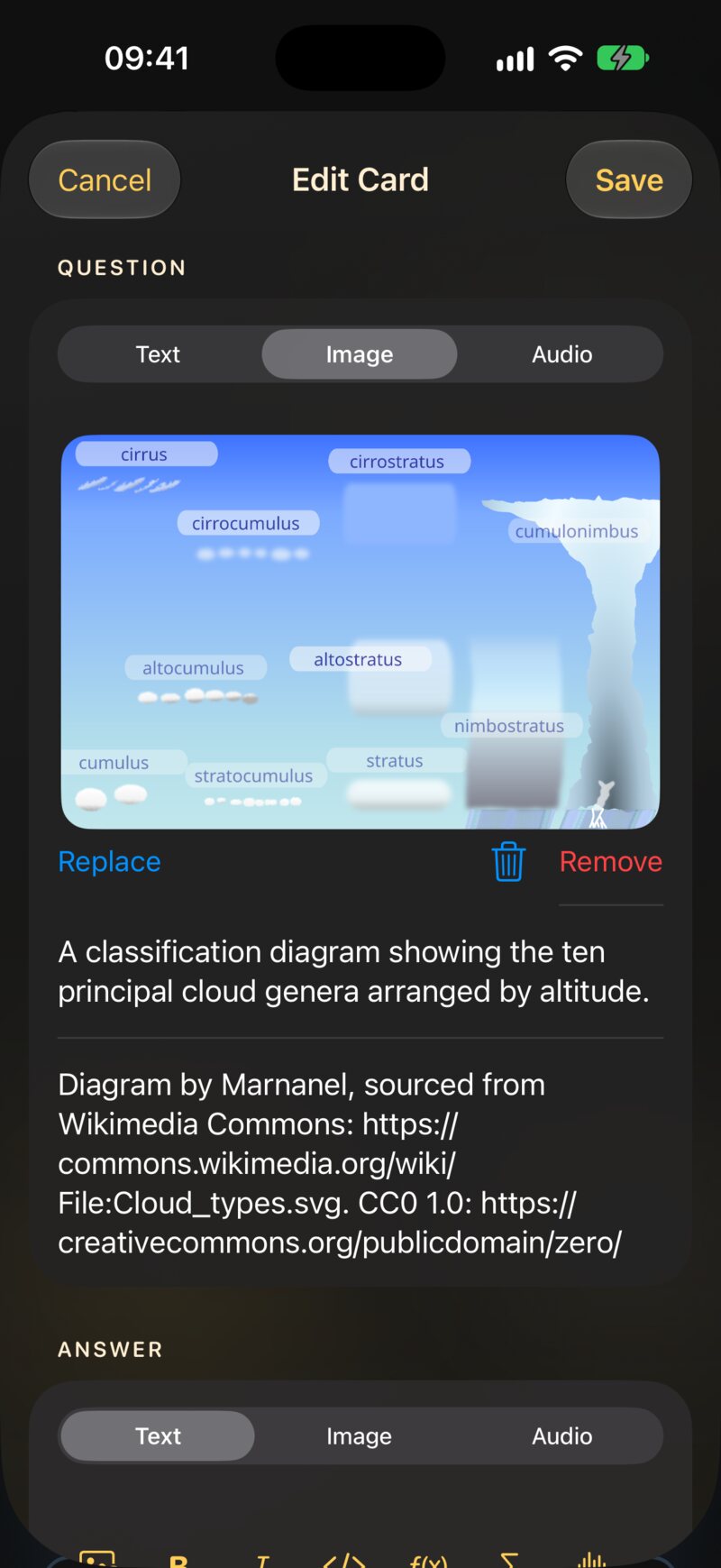
A side holds one picture. Choosing another one replaces it; to take a picture off, open the Image tab and tap Remove.
The picture button opens your Photos library. For an image that lives somewhere else — a download, a screenshot, a scan — add it to Photos first, then pick it in the card editor.
Take the photo with the Camera app first, then choose it from Photos in the card editor.
4.1.1 Where a picture sits
A picture can end up in one of three places. JustFlip! decides from what is on the side, not from a setting:
| On the side | Where the picture goes |
|---|---|
| A picture and no text | Fills the side, centred |
Text with an ![attachment:0] marker |
Inside the text, where the marker is |
| Text with no marker | Below the text, as a block |
The third case is what you get with decks you import (Chapter 5) and with many curated decks: the file names a picture, but the text has no marker. Such a picture stays put when you edit the text, and the Image tab is where you remove it.
When the marker is in your text and you delete it, the picture goes with it when you save.
A side you make yourself holds one picture. Cards imported from Anki
can carry several, each with its own numbered marker —
![attachment:0], ![attachment:1] and so on.
Delete one marker and only that picture disappears; the others stay.
A large picture on a card shows a Zoom button. It opens the picture full screen, where you can pinch or double-tap to look closer.
4.2 The tab that’s showing is what gets saved
The Text, Image and Audio tabs look like three drawers of one side. They are closer to three kinds of side, and Save stores the one whose tab is showing:
| Saved on | What that side keeps |
|---|---|
| Text | The text; a picture if it is in the text or below it; a sound the card already had |
| Image | The picture; a sound the card already had. The text is dropped |
| Audio | The sound, and the side’s language. The text and the picture are dropped |
Replacing the sound or the picture of a card that also has text? Make the change on the Audio or Image tab, then switch back to Text and tap Save there. Saved on the other tab, that side loses its text.
That rule gives you simple recipes for mixed cards:
- Text and a picture: stay on the Text tab and add the picture with the toolbar’s picture button.
- A picture and a sound: choose the sound on the Audio tab and save. Then edit the card, choose the picture on the Image tab and save again.
- Text and a sound: choose the sound on the Audio tab and save. Then edit the card, write the text on the Text tab and save.
The two-step recipes are needed because a sound chosen on a new card is only saved from the Audio tab. Once the card has a sound, the other tabs keep it.
4.3 Describing and crediting pictures
When a side has a picture, two fields appear under it: Image Description and Image license. Both are optional, and both are worth a few seconds.
4.3.1 The description
VoiceOver reads the description instead of the picture. Without one, it just says “Image”, which tells someone who can’t see the card nothing about it.
Describe what the picture shows, not what it means. On a card that asks “Which bird is this?”, write “A small brown bird with a red breast on a fence post” — not “A robin”, which gives the answer away.
The description is for VoiceOver. The spoken hint from Chapter 3,
![attachment:0]{a red apple}, is what the speaker button
and Speak Cards say. A picture without a hint is silent when the card is
read aloud, whatever its description says.
4.3.2 The licence
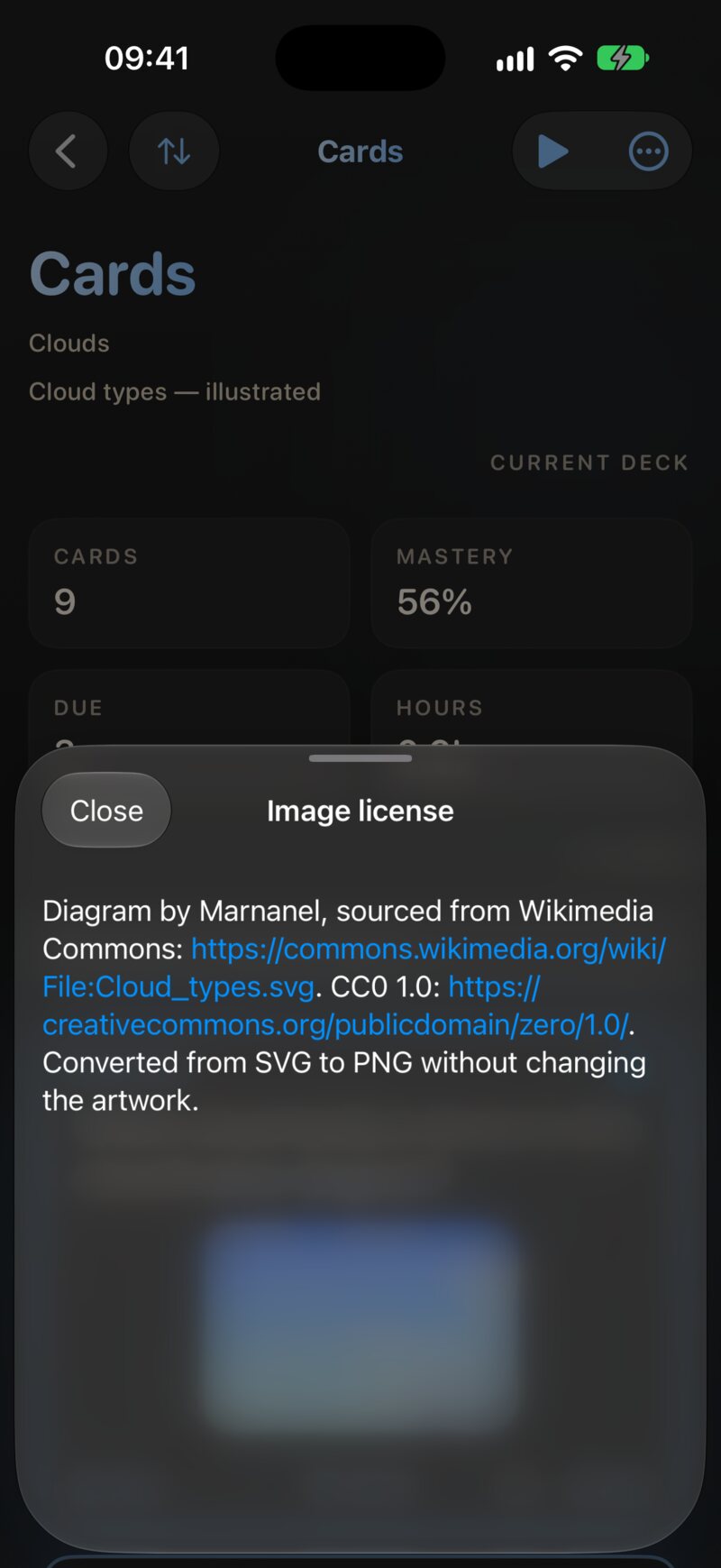
Using someone else’s photo or drawing? Put the author and the licence
in Image license — for example “Photo: Jane Doe,
CC BY 4.0”. Links written as [label](https://…) work in
this field.
On the card, a small ⓘ button appears in the footer. Tapping it opens a sheet with the full text, so the credit is there for anyone who wants it without cluttering the card.
Curated and AI-made decks can carry licences too, in their
q_image_license and a_image_license fields
(Chapter 5).
4.4 Size, formats and sync
A card’s picture travels with the card. It is stored inside your library and synced through iCloud to every device, so a picture you add on the Mac is on your iPhone a moment later.
That convenience has a price: every megabyte syncs to every device. JustFlip! keeps pictures in check on its own. When you save, a picture more than 3,000 pixels on its long side is scaled down to 3,000; an opaque photo is stored as a JPEG, and a picture with transparency keeps it. Smaller pictures are stored exactly as they are.
Sound files are stored exactly as you choose them. A three-minute recording can easily weigh more than a hundred cards of text, so trim clips to the part you need.
| Works | Doesn’t | |
|---|---|---|
| Pictures | Anything your Photos library shows; PNG, JPEG, GIF and WebP from imports | SVG and other vector formats |
| Sound | Files the system recognises as audio, such as .mp3,
.m4a and .wav |
Video |
Vector drawings (.svg) can’t be shown on a card. Export
the drawing as a PNG first — at about 2,000 pixels wide, with a white
background (see Pictures that work).
4.5 Sound on a card
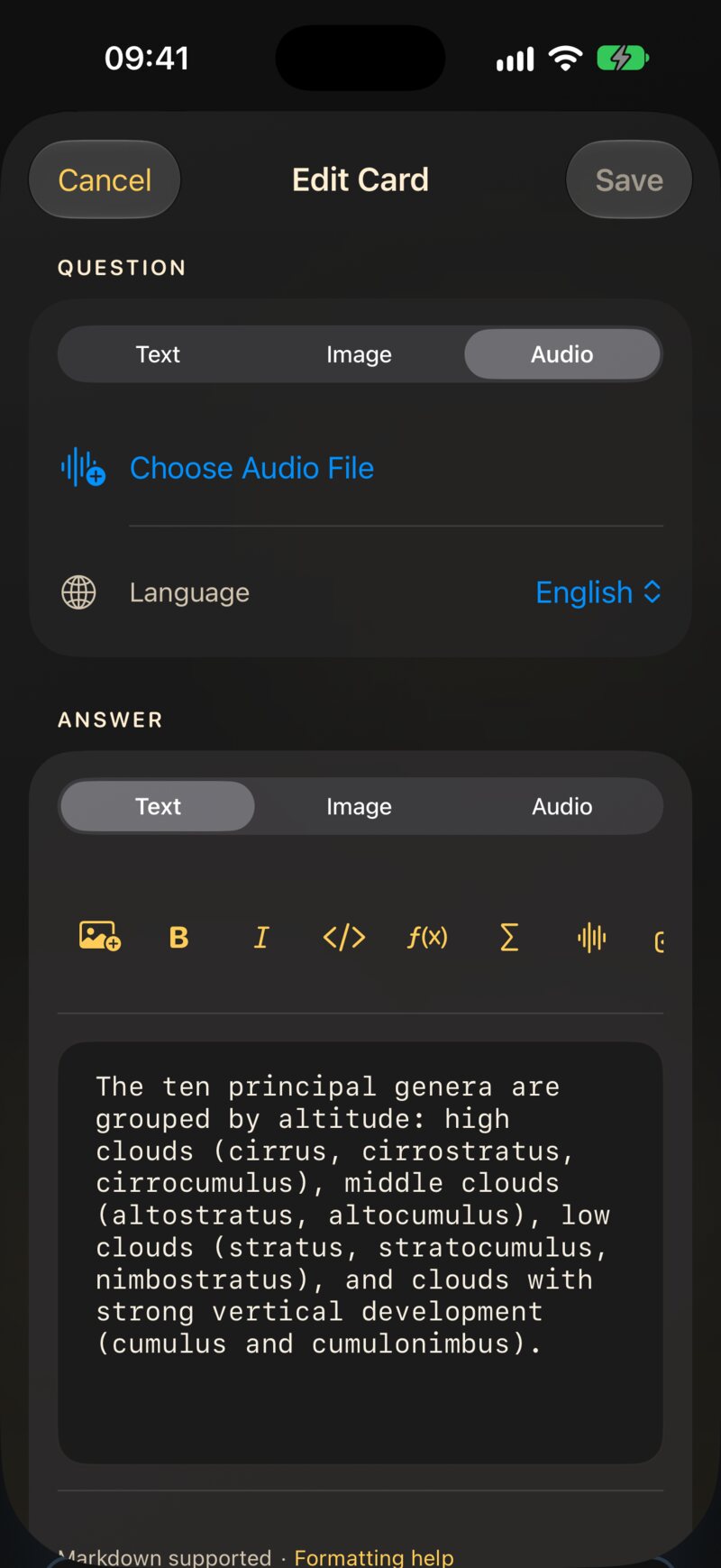
Open the Audio tab and tap Choose Audio File to pick a file from Files. The tab then shows the file’s name and size, a trash button to remove it, and Replace Audio. Below them is the side’s Language.
JustFlip! doesn’t record from the microphone. Record with Voice Memos, share the memo to Files, and choose it from there.
4.5.1 How it plays
Nothing plays by itself. What you see depends on the side:
- A side that is only a sound shows one large play button in the middle of the card.
- A side with text or a picture as well has a small Audio button in its footer, next to the speaker button. While the sound plays it reads Playing.
Starting the sound stops the voice if it is reading the card, and the other way round.
4.5.2 Several tracks
Anki notes sometimes carry more than one sound on a side — a word, then an example sentence. JustFlip! keeps them all, in their original order. The footer button then reads Audio (2), Audio (3) and so on, and opens a menu with one entry per track.
The editor shows only the first track. Replace Audio or the trash button acts on every track of that side. If you want to keep the extra tracks, leave the Audio tab alone.
4.6 Image occlusion
Image occlusion turns one picture into many cards. You cover parts of a diagram with shapes; each covered part becomes its own card that asks “What’s under here?”. It is the fastest way to learn a map, an anatomy plate, a circuit, a fingering chart — anything that is a picture full of labels.
4.6.1 Making occlusion cards
- Open a deck, tap the More actions button (•••) and choose Add image occlusion cards.
- Tap Select image and pick the picture.
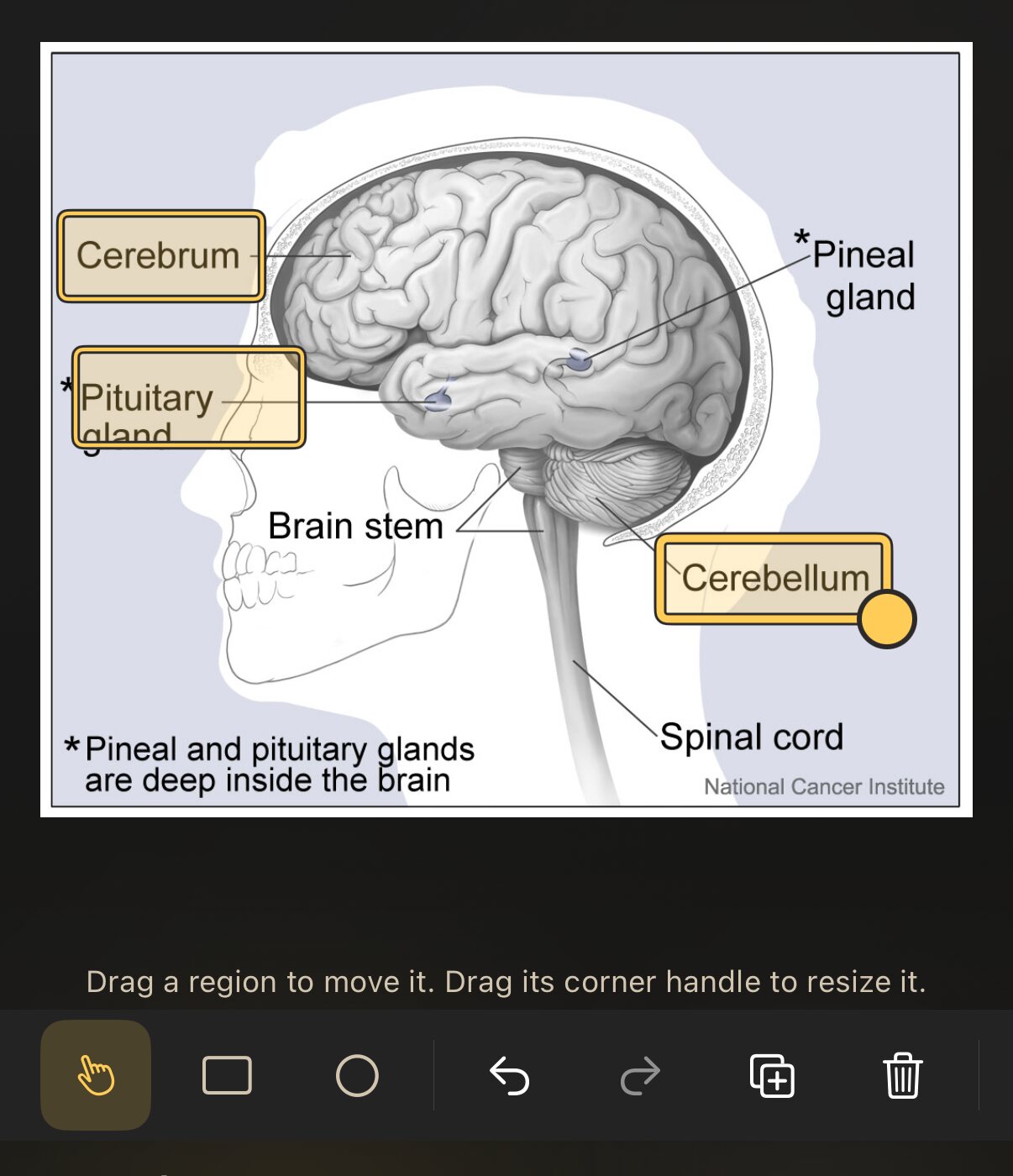
- Drag across the picture to cover a region. Repeat for every label you want to learn.
- Pick a mode, add the optional text, and tap Save N cards.
The tools above the picture:
| Tool | What it does |
|---|---|
| Rectangle / Ellipse | Draw a new region by dragging |
| Select | Move a region by dragging it; resize it by its corner handle |
| Undo / Redo | Step back and forward through your edits |
| Duplicate region | Copy the selected region |
| Delete region | Remove the selected region |
| Change image | Swap the picture underneath |
4.6.2 Two modes
Under Mode you choose how much of the picture is hidden while a card asks its question. Either way, every region becomes its own card.
| Mode | While asking | Best for |
|---|---|---|
| Hide one, guess one | Only the tested region is covered; you can see every other label | Learning where things are, with the neighbours as clues |
| Hide all, guess one | Every region is covered; the tested one has a stronger border and a question mark | Testing yourself properly, without the other labels giving hints |
Start with Hide one, guess one. Once a picture feels easy, a second set of cards in Hide all, guess one is a good exam.
4.6.3 The text around it
Three optional fields sit under the mode:
- Header (optional) — shown above the picture on every card. Put the question here: “Name the bone.”
- Answer notes (optional) — shown under the picture once the answer is revealed. Good for a mnemonic or a detail.
- Comments (optional) — a note to yourself. It is kept with the cards but isn’t shown during review.
Then there is Image description. As the editor says, VoiceOver reads it instead of the picture, so describe the diagram without giving any answer away: “A front view of the human skeleton” rather than a list of the bones.
A region covers exactly the area you drew. If a label pokes out of its rectangle, the answer is visible. Draw generously — a margin around each label costs nothing.
4.6.4 Reviewing an occlusion card
An occlusion card doesn’t flip. The picture stays in place; tap Show answer at the top — or press the space bar on a keyboard — and the covered region opens, outlined, while the rest stays as it was. Then grade it like any other card. Pinch to zoom into a detailed diagram.
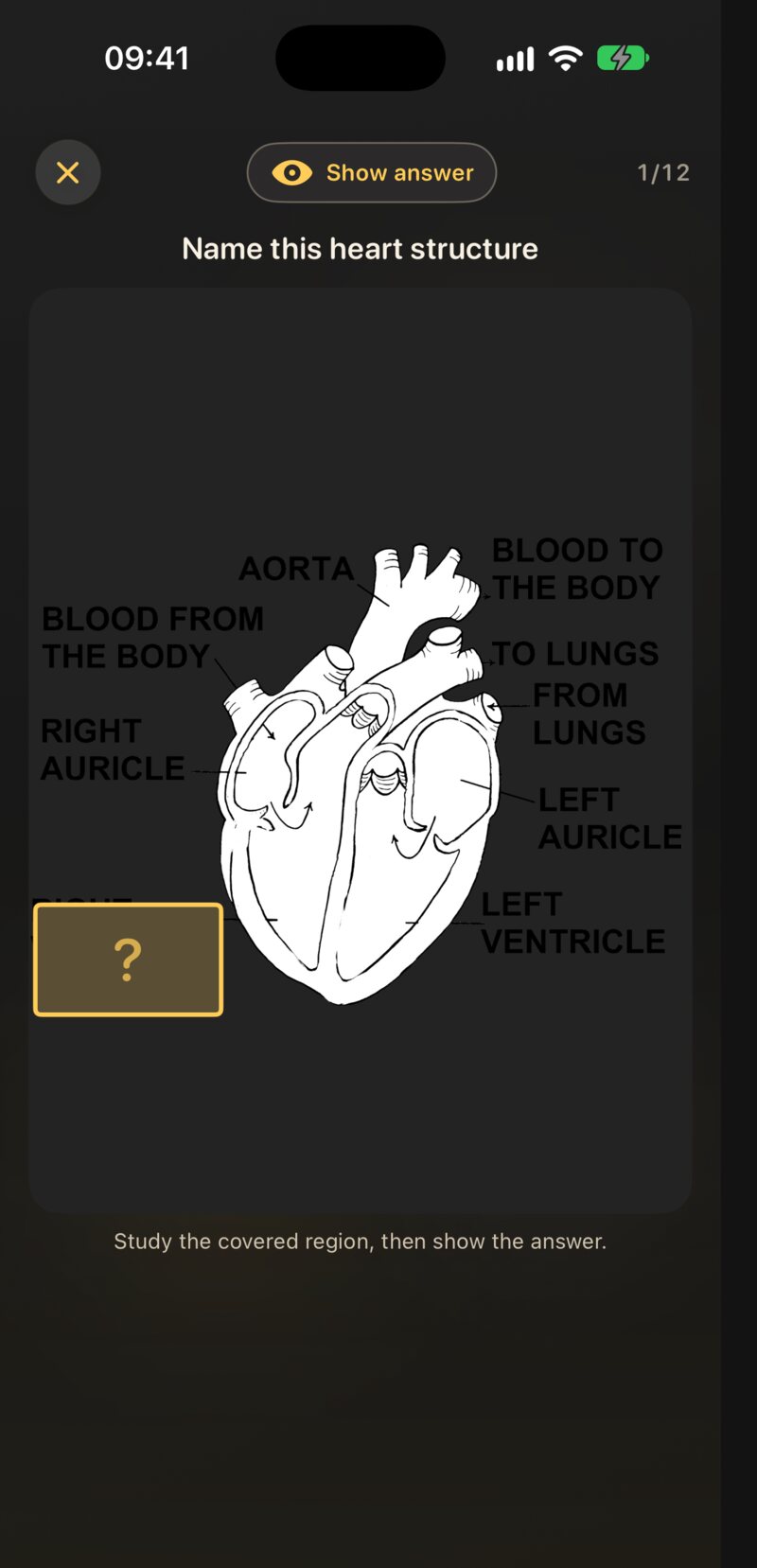
Occlusion cards are part of your normal reviews on iPhone, iPad and Mac. The Apple Watch leaves them out and tells you how many cards are waiting for your iPhone.
4.6.5 Editing an occlusion card
Edit any card of the set — press and hold it (or right-click on a Mac) and choose Edit Card — and JustFlip! opens the region editor, not the text editor. There you can move, add or delete regions, change the mode, the text, or even the picture.
Regions you keep keep their review history. A region you add becomes a new card; a region you delete takes its card with it.
Anki’s own image-occlusion notes, and the older Image Occlusion Enhanced add-on, arrive as native JustFlip! occlusion cards when you import the deck (Chapter 5). Deck files made by the coding-agent skill can contain occlusion cards too.
4.7 Pictures that work
A card draws your picture exactly as it is. There is no background plate behind it, no frame and no automatic contrast fix. That keeps photos looking natural, and it makes a few habits worth learning.
A PNG with black lines on a transparent background looks perfect in light mode. In dark mode the card behind it is nearly black, and the drawing disappears — lines, labels, notes on a stave, all of it. Before you add a diagram, formula image or scanned sketch, give it a solid white or light background. Most image editors call this flatten; exporting as JPEG does it too. Check the card once in dark mode before you make fifty more like it.
A few more rules of thumb:
- Use raster images. PNG for diagrams, text and line art; JPEG for photos. No SVG.
- About 2,000 pixels on the long side is plenty. JustFlip! never draws a picture on a card larger than about 2,200 pixels, and it scales anything over 3,000 down when you save. More resolution only costs sync time.
- Crop hard. A card is small. Cut away everything that isn’t the thing you are asking about — the picture gets bigger for free.
- Keep text in the picture large. Labels that are readable on a laptop screen are often a blur on an iPhone card. Zoom helps, but a card you have to zoom into is slower to review.
- One idea per picture. A diagram with twenty labels makes one bad card and twenty good occlusion cards.
4.8 Quick reference
| Task | Where |
|---|---|
| Picture inside the text | Text tab → toolbar picture button |
| Picture as the whole side | Image tab → Choose Image |
| Picture from the clipboard | Paste into the text field (⌘V on Mac) |
| Remove a picture | Image tab → Remove |
| Describe for VoiceOver | Image Description, under the picture |
| Credit the author | Image license → the ⓘ button on the card |
| Add a sound | Audio tab → Choose Audio File |
| Replace or remove a sound | Audio tab → Replace Audio or the trash button |
| New occlusion cards | Deck → More actions → Add image occlusion cards |
| Edit occlusion regions | Edit any card of the set |
| Reveal an occlusion card | Show answer, or the space bar |