
11.1 It follows your settings
JustFlip! has no accessibility mode to switch on. It reads the settings in Settings › Accessibility on your device and adapts to them. This is what each one changes:
| System setting | What JustFlip! does |
|---|---|
| VoiceOver | Reads every card, button and chart, with named actions for flipping and grading |
| Larger Text | Scales the text in the app, including the text on your cards |
| Bold Text | Draws the app’s text in a heavier weight |
| Reduce Motion | Stops the card from spinning when it flips, and calms other animations |
| Increase Contrast | Switches to higher-contrast colours and adds outlines where colour alone isn’t enough |
| Differentiate Without Colour | Adds symbols, dots and outlines to indicators that otherwise use colour |
| Voice Control | Every button answers to its visible name, and the card to a few extra phrases |
The one accessibility setting inside the app is your text size, under Settings › Appearance. You can read more about it in Larger text.
We keep an honest, detailed report of what’s implemented and what’s still being tested, device by device, at https://just-flip.app/accessibility/. Apple’s Accessibility Nutrition Labels on the App Store are published one category at a time, only after that category passes testing on real devices.
11.2 VoiceOver
VoiceOver reads JustFlip! the way it reads Apple’s own apps. Lists, forms and Settings use standard controls, and grouped items, such as a deck row or a statistic, are read as one item instead of a stream of fragments.
11.2.1 Cards and reviews
A card is one item for VoiceOver. It reads the side you’re looking at, and a hint tells you to double-tap to flip it. After the flip, VoiceOver announces “Question” or “Answer”, so you always know which side you’re on.
On a card, swipe up or down to reach its actions:
- Flip card turns the card over.
- Show full content opens a card that is too long to fit in a sheet where you can read all of it.
- View image full screen or View diagram full screen opens a picture or diagram at full size, where you can zoom.
The grade buttons are read with the grade first and the details after it: the grade, then when the card would come back, then how many times you’ve chosen that grade in this session. After each grade, VoiceOver tells you where you are, for example “Card 4 of 20”, and it announces Practice Complete at the end of the session.
The capital of France
is {{c1::Paris}}.The capital of France is […].
The voice says “The capital of France is blank.”
Cloze blanks are never given away. On the question side, VoiceOver says “blank” where the hidden words are, or reads the hint if the blank has one. The answer only comes after the flip.
VoiceOver reads the rest of the card the way JustFlip!’s own voice does:
- Spoken hints are used.
[iOS]{eye oh ess}is read as “eye oh ess” (Chapter 3). - Formulas are read from their spoken hint, or from their TeX source when there’s no hint.
- Diagrams are read as their labels, not their arrows.
- Tables are read row by row, cell by cell.
- Pictures are read from their description (see Writing accessible cards). A picture without a description is read simply as “Image”.
- Flags are read out as their names, for example “Red flag”.
11.2.2 Lists and actions
Touch-and-hold menus have VoiceOver actions too, so you don’t need the gesture. On an interest row, swipe up or down for Edit Interest, Import cards, Export archive, Export statistics and Delete. A deck row offers Edit Deck and Delete Deck. In the tag field, VoiceOver confirms each tag as you add or remove it.
In Statistics, the charts can be explored point by point: each point is read with its date and its value.
On an image occlusion card, the picture offers Zoom in, Zoom out and Reset zoom as actions, in place of pinching.
11.2.3 On Apple Watch
The watch reads each card as “Question” or “Answer” followed by its text. Rating a card on the watch normally means pressing and holding it (Chapter 8). VoiceOver can’t press and hold, so the four grades are also offered as actions on the card: swipe up or down to pick Again, Hard, Good or Easy.
11.3 Larger text
Out of the box, JustFlip! uses the text size you set for your whole device in Settings › Accessibility › Display & Text Size › Larger Text. Buttons, lists, statistics and the text on your cards all grow with it.
You can also give JustFlip! a size of its own, separate from the rest of the device. Go to Settings › Appearance:
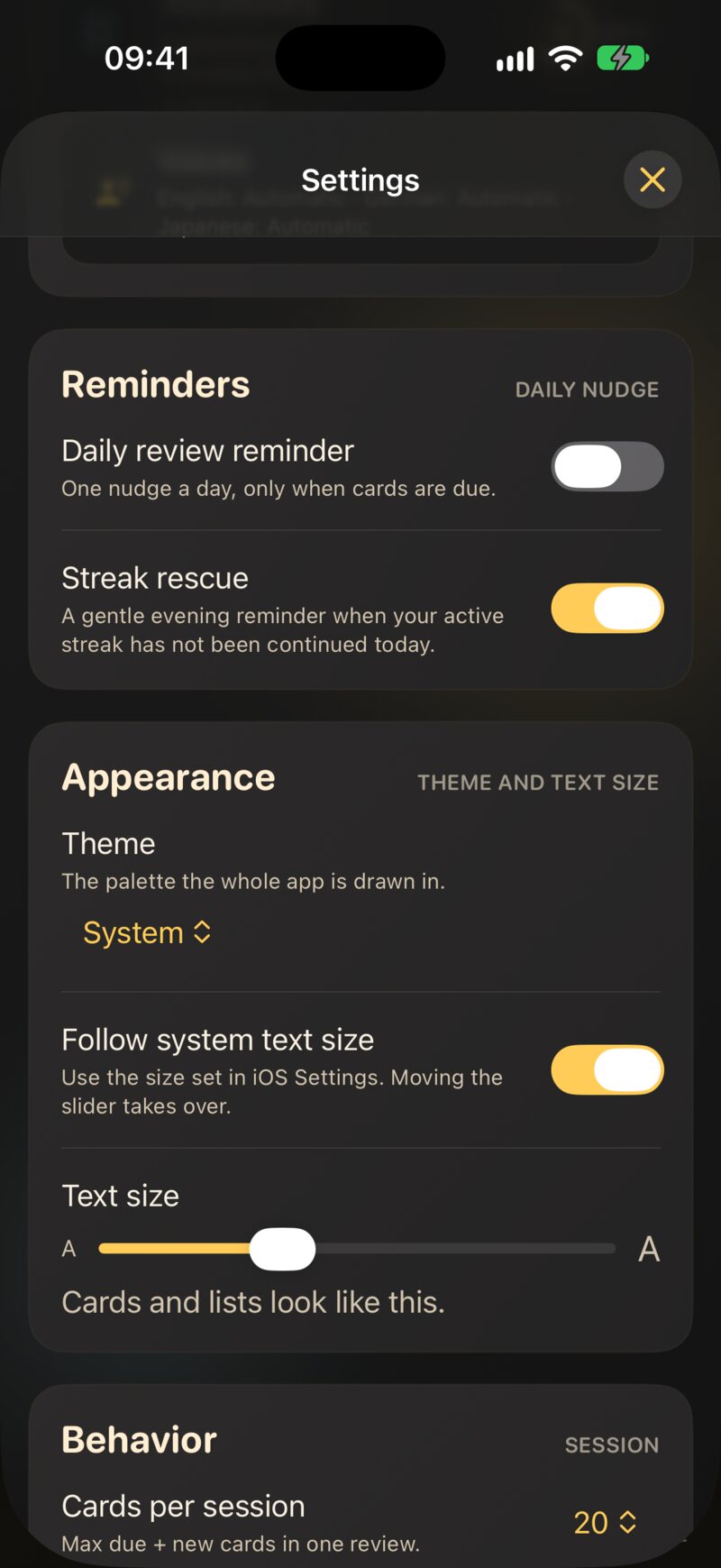
- Follow system text size is on by default. JustFlip! then uses the device’s size.
- The Text size slider picks the size for JustFlip! alone. Moving it turns Follow system text size off for you. The line underneath it, “Cards and lists look like this.”, shows the size you’re choosing.
The slider has ten steps, from the smallest system size up to the third accessibility size. The largest two sizes, which you can set in iOS, still work in JustFlip! when they come from your device setting. The slider just doesn’t offer them. At those sizes, most cards no longer fit on the card, and you’d be opening almost every one in a separate sheet.
The last step of the welcome tour offers the same slider, so you can set a comfortable size before your first review.
At the default size, JustFlip! shrinks a long card slightly so it fits (Chapter 3). With a larger text size, it doesn’t. Your card is drawn at exactly the size you asked for. Whatever doesn’t fit fades out at the bottom, and the ••• button (or VoiceOver’s Show full content action) opens the rest. If that happens on most of your cards, split them into shorter ones. That’s good for your memory anyway.
Larger text support is nearly complete, but it hasn’t been tested on devices at every size yet. The one known gap: at the very largest sizes, the heading and the grade buttons around the card on the review screen can run out of room. The card itself is fine. If you need the largest sizes, setting JustFlip!’s own text size one or two steps lower keeps the review screen tidy.
11.4 Motion, weight and contrast
11.4.1 Reduce Motion
With Reduce Motion on, the card no longer spins in 3D when you flip it. It changes sides in place, a little faster. The other movement in the app is calmed down too: cards flying off after a grade, the shimmer on loading lists, the welcome-tour illustrations, progress bars filling up and the review results.
11.4.2 Bold Text
Bold Text makes the app’s text heavier, just as it does everywhere else on your device. Heavier text takes more room, so JustFlip! takes it into account when it works out whether a card fits.
11.4.3 Increase Contrast
With Increase Contrast on, JustFlip! switches to higher-contrast versions of its colours, in light and in dark. A few places add outlines that colour alone would otherwise carry:
- a card’s flag gets an outline around its colour,
- on an image occlusion card, the region you’re asked about gets extra emphasis,
- diagrams, on the card and full screen, use the higher-contrast colours too.
Every colour pair the app uses for text is measured against its background in light, dark and both Increase Contrast appearances, and each one clears a contrast ratio of 4.5:1.
11.4.4 Differentiate Without Colour
When Differentiate Without Colour is on, the small indicators that use colour gain a shape as well:
- the small indicators that show how urgent a card is and how you last graded it switch to distinct symbols,
- the activity heatmap in Statistics adds one, two or three dots for low, medium and high activity, and outlines today’s square,
- image occlusion regions get extra emphasis, as with Increase Contrast.
Some things never rely on colour, whatever your settings: the grade buttons always carry a label and a symbol, and the selected flag in the flag picker is marked with a ring and a checkmark.
11.5 Voice Control and keyboards
Voice Control uses the names you see on screen, so “Tap Again”, “Tap Good” or “Tap Settings” work as you’d expect. A few controls answer to extra phrases:
| Say | Does |
|---|---|
| “Tap Flip card”, “Tap Turn card”, “Tap Show other side” or “Tap Flip” | Flips the card |
| “Tap Postpone” or “Tap Snooze” | Opens the postpone menu during a review |
Voice Control hasn’t yet been tested end to end on every device. The sliders and the touch-and-hold menus are the least tested parts. If a name doesn’t work there, “Show numbers” always does.
On a keyboard, a review needs no pointer at all: Space flips the card and the keys 1 to 4 grade it, on the Mac and on an iPad with a hardware keyboard. The full reference is in Chapter 8. JustFlip! uses standard buttons, menus and switches throughout, but Full Keyboard Access hasn’t been tested end to end yet.
11.6 Themes
A theme is the colour palette the whole app is drawn in. Choose one under Settings › Appearance › Theme. The menu shows a small swatch of the theme you have now:
| Theme | What it looks like |
|---|---|
| System | The JustFlip! gold palette, light or dark to match your device. The default. |
| JustFlip Light | The gold palette, always light, whatever your device is set to |
| JustFlip Dark | The gold palette, always dark |
| Mist | A calm, mineral light palette with clear-water blue, juniper and sage |
| Mist Dark | Mist on deep ink-coloured surfaces |
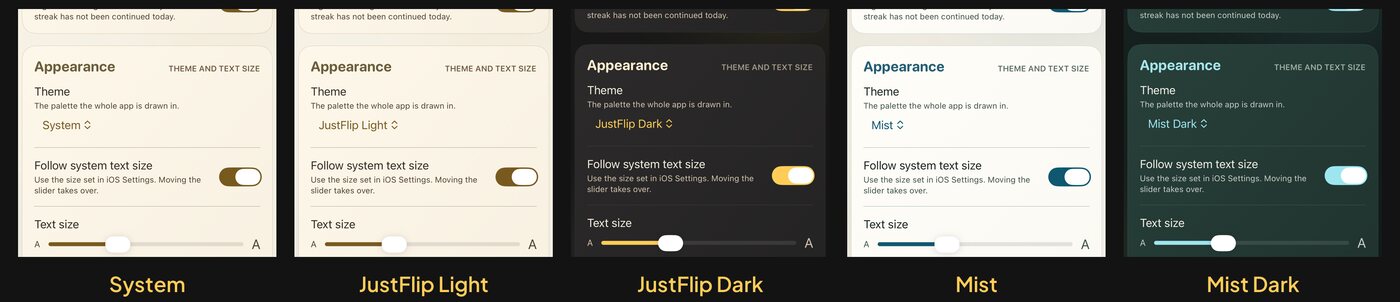
The change is instant: the whole app repaints as soon as you pick a theme, with no restart. Every theme has light or dark built in, so there’s no separate light/dark switch. To follow the device’s dark mode, pick System.
The theme is for the app itself. The home-screen widget keeps the JustFlip! gold and follows the device’s light or dark setting. The Apple Watch app is always dark. The pictures on your cards are shown exactly as they are, in every theme.
JustFlip Light and Mist stay light even when your device switches to dark mode at sunset, and the two dark themes stay dark in daylight. If JustFlip! doesn’t follow your dark mode, check Settings › Appearance › Theme. Only System follows it.
11.7 Writing accessible cards
The app can only read out what’s on your cards. These habits make a deck work for everyone who uses it, including you, when you listen with Speak Cards on a walk.
- Describe every picture. When a side has a picture, the editor shows an Image Description field (“Describe the image (optional)”). VoiceOver reads it in place of the picture. Describe what the picture shows: “A small brown bird with a red breast on a fence post” says far more than “bird photo”. On a “Which bird is this?” card, leave the name out, or the description gives the answer away (Chapter 4). The description also makes a picture-only card findable in Spotlight (Chapter 8). And it travels with the deck when you export and share it.
- Set the language of each side. The Language picker decides which voice reads the side aloud with the speaker button and with Speak Cards (Chapter 7). A side without a language is never spoken by JustFlip!’s own voice.
- Add spoken hints where reading goes wrong. A hint
such as
$c^2${c squared}fixes what JustFlip!’s voice says and what VoiceOver reads, in one go. - Give cloze blanks a hint when context is thin. With a hint, VoiceOver and the voice read the hint instead of just “blank”.
- Don’t let colour carry the meaning. Flags are named aloud, but what each colour means is up to you. If “red” means “exam next week”, put that in a tag too. Tags are text, so they can be read and searched.
- Label your diagrams well. A diagram is read out as its labels, so “Start review → Card due?” says more than “A → B”.
- Keep cards short. A short card fits at large text sizes and on the Apple Watch, and it’s easier to remember too.
The Language picker controls JustFlip!’s own voice: the speaker button and Speak Cards. VoiceOver reads cards with the voice you’ve set in VoiceOver’s own settings. For a card in another language, the speaker button on the card is the most reliable way to hear it pronounced properly.